

Recently, multiple clients have asked for help with emails from their business not getting sent to their customers.
Upon investigation, I found out that the messages were sending, but they were being categorized as spam and never hitting their customers’ inboxes.
Changes made over the past couple years by major mail handlers such as Gmail may have impacted emails you send from a custom domain. It’s worth taking a few minutes to properly authenticate your emails to avoid them being picked up by spam filters.
Let’s walk through how to look for issues with your email address, including how to authenticate emails sent by your online store or newsletter.
Content Warning:
This is dry, dull, dreary stuff! It’s also quite important.
I try to avoid technical content in my articles, but in the case of email authentication, there’s no getting around it.
If you find your eyes glazing over or a feeling of overwhelm set in, remember that you always have the option to get assistance.
Table of Contents
What your customers might be seeing

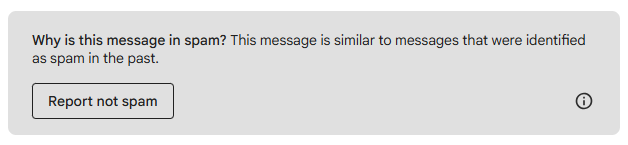
If your email isn’t authenticated correctly, anyone who receives an email from you (either directly or from your newsletter tool) might see an error such as these when they open the email.
Even worse, your mail might completely skip their inbox and be sent straight to spam.
Recent Changes to Email Authentication Standards
Starting in 2024, Google and Yahoo started requiring stricture security measure on emails, especially bulk emails such as ads and newsletters. They set an industry standard which has been more or less adopted by Microsoft, Apple, and other smaller mail handlers throughout this year.
If your emails are missing one of the new security requirements, then contacts are likely to see a warning such as the ones above when they begin receiving emails from you. This is especially true of new contacts who don’t have your email address saved.
You may not have a problem at all—your emails might be fully authenticated already. However, it only takes a few minutes to check and avoid potential losses.
How to Check for Email Issues
Your domain needs three things to avoid deliverability issues: SPF, DKIM, and DMARC. These are basically invisible signatures that you send with every email, and the receiving inbox uses them to assign a level of trust to the received mail.
If all three signatures are aligned, then your email will be trusted. If one or more is missing or misaligned, then the email may be flagged as suspicious or spam.
Here’s a simple three-step process to check for these signatures:
Step 1: Send Yourself a Test Email
Send an email from your custom domain (e.g. melissa@fishersoffolk.com) to your personal email address (e.g. melissa@gmail.com).
Step 2: View the Email Header
Open the email. Choose the option to “Show Original” (it’s usually buried in a sub-menu near the reply button).
This opens the email as a bunch of code that might look like an alien language. But you don’t need to understand most of it—you are only looking for three things. You just need to see if SPF, DKIM, and DMARC all passed verification.
Step 3: Check that SPF, DKIM, and DMARC all Pass
You might see a summary like the screenshot below. In this case it’s very easy to see that the email passed all validation checks.
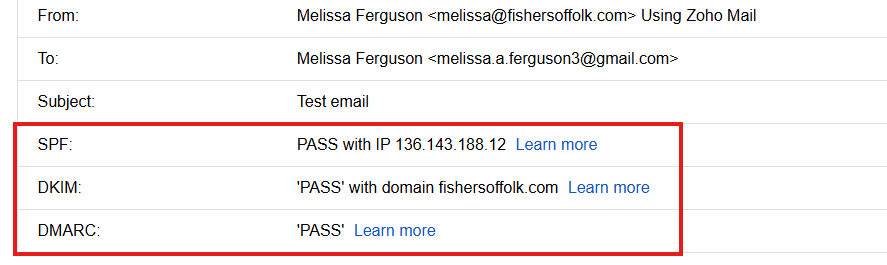
If you don’t have this summary section, you can instead search the page text for “spf=pass”, “dkim=pass”, and “dmarc=pass”.
If you have all three of these, your email is following authentication standards! No action is needed!
However, if you see “fail” instead of “pass” for any of these values, then you need to make some changes to your DNS records.
How can I fix my email validations?
It depends. It’s a little like replacing wiper blades on your car—you have to find the right answer that fits your particular setup.
If you are missing a DMARC record, go to your DNS settings for your domain and add the following (using your own email domain):
Record type: TXT
Name: _dmarc
Value: v=DMARC1; p=none; rua=mailto:dmarc@yourdomain.com
Note that if you have an IT person, they may want you to use a different email address.
For issues with SPF or DKIM records, you’ll have to look up instructions for your specific mail handler. If you’re sending emails from a GoDaddy mailbox, for example, you can search online for “GoDaddy SPF and DKIM records” to find instructions.
What if I send emails from a newsletter tool or from my online store?
Any tool that you use to send emails with your custom domain should require your domain to be authenticated with that tool.
As above, the details depend on the particular tool. Some require a DKIM record to be added to your domain, and some want you to add a value to your existing SPF record.
Note that you can have multiple DKIM records, but only one each of SPF and DMARC.
In your newsletter or other tool, find where you define the email address that messages are sent from. Usually this area includes a list of authorized domains.
When you view the details of a domain, you will typically see a dashboard that shows if the domain is authenticated or if it is missing a validation record. Follow the instructions in the page to add any missing validations.
Why is this so complicated and confusing?
Because the Internet is, for good or bad, largely decentralized.
The good news is, security standards such as this don’t change very often. Once you resolve any email issues, they will most likely stay resolved! At least for a while.
And when future changes do occur, I’ll remain a resource in your toolkit, giving you the skills and information you need to keep reeling in your audience.